Printing Guide
Everything you need to know to print professional-quality labels and sleeves at home.
The Basics
This site creates two types of designs: labels (stickers that go on tapes and discs) and covers (sleeves, J-cards, and inserts that get folded). Since label paper typically comes with multiple labels per sheet, I recommend the "copy and paste" method — it lets you arrange multiple labels on one page before printing. Covers are single full-page prints, so a simple PDF download works best.
Labels
VHS face/spine labels, cassette labels, CD disc labels
- Click Export › Copy to copy the label to your clipboard
- Click Paste & Print to open a print-ready page
- Press Ctrl/Cmd + V to paste into the Photopea template
- Move your label to the guides
- When you're ready to print, Hide any guide layers then print at 100% scale
Covers
Sleeves, J-cards, CD inserts, etc.
- Click Export, select your paper size, and choose the PDF download
- Print at 100% scale (actual size) — do not "fit to page"
- Cut along the edges, fold along the guides
Paper Selection
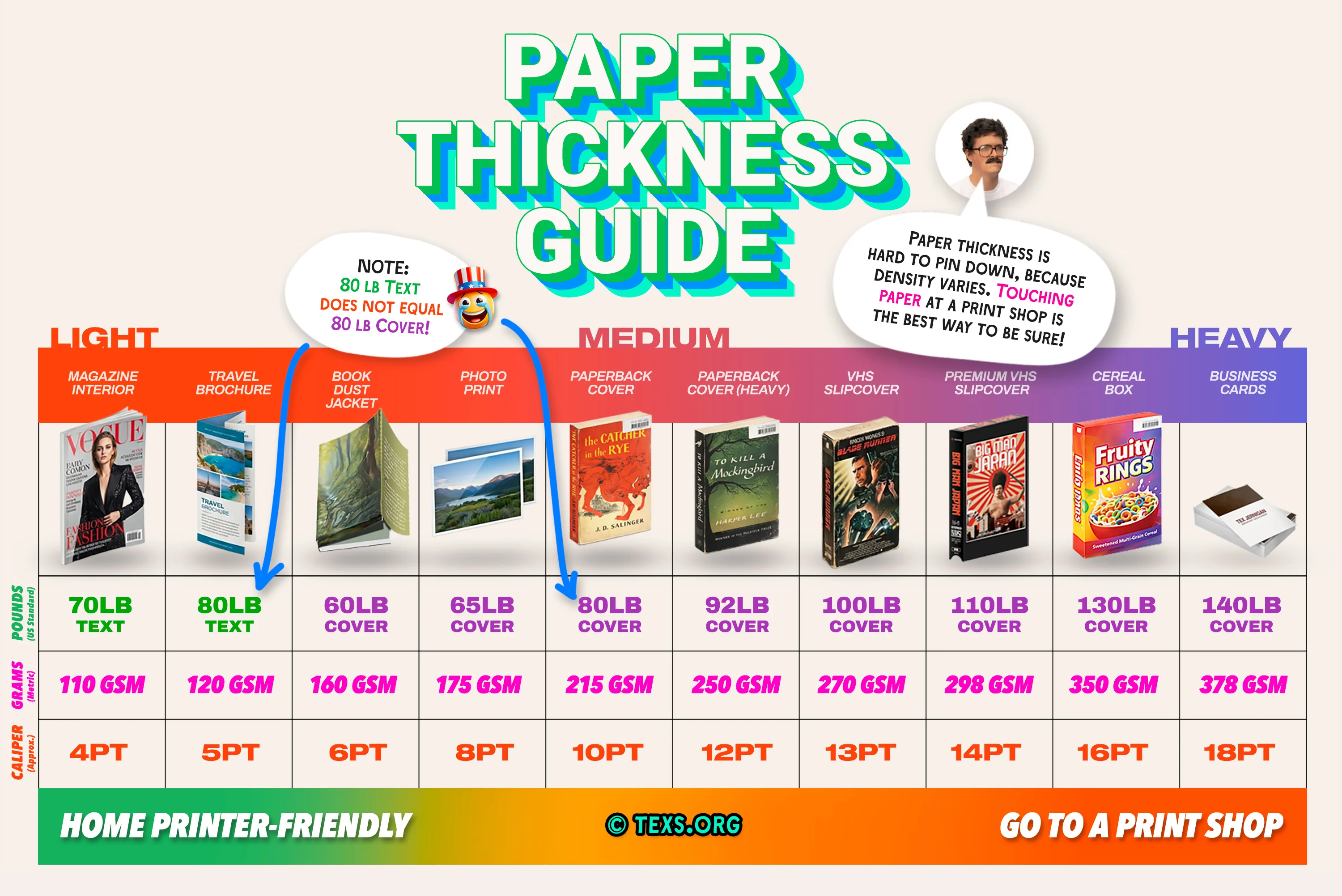
Choosing the right paper is crucial for professional-looking results. Paper weight is measured in GSM (grams per square meter) — higher numbers mean thicker, sturdier paper. GSM is worth shopping by even in the US, where the same stock also gets sold as 12pt or 100lb cover: searching for a GSM number is far more reliable. For labels, use sticker paper. For slipcovers and full wraps, aim for 300 GSM cardstock. Lighter paper (160-200 GSM) folds more easily and is what you want for inserts that slide inside a case, but it feels flimsier as a wrap. Score your fold lines before folding so heavier stock does not crack.
Print Dimensions
All exports are rendered at 600 DPI for high-quality printing.
| Design | Pixels | Inches | Millimeters | Notes |
|---|---|---|---|---|
| VHS Face Label | 1840 × 1110 | 3.07" × 1.85" | 78 × 47 mm | — |
| VHS Face Label (with bleed) | 1960 × 1230 | 3.27" × 2.05" | 83 × 52 mm | +60px bleed |
| VHS Spine Label | 3480 × 400 | 5.80" × 0.67" | 147 × 17 mm | — |
| VHS Spine Label (with bleed) | 3600 × 520 | 6.00" × 0.87" | 152 × 22 mm | +60px bleed |
| Betamax Face Label | 1500 × 1605 | 2.50" × 2.67" | 64 × 68 mm | — |
| Betamax Face Label (with bleed) | 1620 × 1725 | 2.70" × 2.88" | 69 × 73 mm | +60px bleed |
| Betamax Spine Label | 3300 × 413 | 5.50" × 0.69" | 140 × 17 mm | — |
| VHS Slipcover | 6440 × 5504 | 10.73" × 9.17" | 273 × 233 mm | — |
| Side-Load VHS Slipcover | 6420 × 5652 | 10.70" × 9.42" | 272 × 239 mm | — |
| Double VHS | 7724 × 6191 | 12.87" × 10.32" | 327 × 262 mm | — |
| VHS Polycase | 6153 × 4650 | 10.26" × 7.75" | 260 × 197 mm | — |
| VHS Clamshell | 7040 × 5060 | 11.73" × 8.43" | 298 × 214 mm | — |
| Betamax Sleeve | 6016 × 4573 | 10.03" × 7.62" | 255 × 194 mm | — |
| Compact Tape Slipcase (VHS-C default) | 4045 × 2979 | 6.74" × 4.96" | 171 × 126 mm | — |
| Card Deck Box | 4330 × 3391 | 7.22" × 5.65" | 183 × 144 mm | — |
| Blockbuster VHS | 6153 × 4649 | 10.26" × 7.75" | 260 × 197 mm | — |
| Blockbuster DVD | 6449 × 4347 | 10.75" × 7.25" | 273 × 184 mm | — |
| Blockbuster Blu-ray | 6340 × 3512 | 10.57" × 5.85" | 268 × 149 mm | — |
| Blockbuster BitBox (N64/SNES) | 7332 × 4360 | 12.22" × 7.27" | 310 × 185 mm | — |
| Movie Gallery VHS | 6153 × 4649 | 10.26" × 7.75" | 260 × 197 mm | — |
| Hollywood Video VHS | 6153 × 4649 | 10.26" × 7.75" | 260 × 197 mm | — |
| Video Ezy VHS | 6153 × 4649 | 10.26" × 7.75" | 260 × 197 mm | — |
| DVD Cover | 6450 × 4350 | 10.75" × 7.25" | 273 × 184 mm | default, adjustable |
| Blu-ray Cover | 6340 × 3512 | 10.57" × 5.85" | 268 × 149 mm | default, adjustable |
| Blu-ray Slipcover | 7346 × 4063 | 12.24" × 6.77" | 311 × 172 mm | default, adjustable |
| Steel Case (Blu-ray) | 7457 × 4416 | 12.43" × 7.36" | 316 × 187 mm | default, adjustable |
| Disc Label (DVD / Blu-ray) | 2837 × 2837 | 4.73" × 4.73" | 120 × 120 mm | — |
| Cassette Label (per side) | 2096 × 995 | 3.49" × 1.66" | 89 × 42 mm | — |
| Cassette Label (with bleed) | 2176 × 1076 | 3.63" × 1.79" | 92 × 46 mm | bleed |
| J-Card (3-panel) | 3975 × 2400 | 6.63" × 4.00" | 168 × 102 mm | up to 8 panels |
| Cassingle J-Card | 3980 × 2421 | 6.63" × 4.04" | 168 × 102 mm | — |
| CD Label (disc) | 2837 × 2837 | 4.73" × 4.73" | 120 × 120 mm | — |
| CD Tray Card | 3564 × 2787 | 5.94" × 4.64" | 151 × 118 mm | — |
| CD Insert (cover only) | 2850 × 2850 | 4.75" × 4.75" | 121 × 121 mm | 1 panel |
| CD Insert | 5700 × 2850 | 9.50" × 4.75" | 241 × 121 mm | 2 panels |
| CD Insert (3-panel) | 8476 × 2850 | 14.13" × 4.75" | 359 × 121 mm | needs Tabloid/A3 |
| Vinyl Record Label | 2394 × 2394 | 3.99" × 3.99" | 101 × 101 mm | — |
| Vinyl Record Label (with bleed) | 2540 × 2540 | 4.23" × 4.23" | 108 × 108 mm | bleed |
| Vinyl Jacket (12") | 14874 × 8337 | 24.79" × 13.89" | 630 × 353 mm | needs ANSI D/A1 |
| Vinyl Inner Sleeve (12") | 14448 × 8256 | 24.08" × 13.76" | 612 × 350 mm | needs ANSI D/A1 |
| MiniDisc Label (front) | 850 × 1252 | 1.42" × 2.09" | 36 × 53 mm | — |
| MiniDisc Label (front, with bleed) | 944 × 1346 | 1.57" × 2.24" | 40 × 57 mm | bleed |
| MiniDisc Label (spine) | 89 × 1394 | 0.15" × 2.32" | 4 × 59 mm | — |
| MiniDisc Full Label | 1662 × 1578 | 2.77" × 2.63" | 70 × 67 mm | — |
| MiniDisc Cover Insert (2-panel) | 3421 × 2477 | 5.70" × 4.13" | 145 × 105 mm | up to 6 panels |
| MiniDisc Cover Insert (6-panel) | 10107 × 2477 | 16.84" × 4.13" | 428 × 105 mm | needs Tabloid/A3 |
| MiniDisc J-Card (3-panel) | 1996 × 1724 | 3.33" × 2.87" | 84 × 73 mm | up to 5 panels |
| MiniDisc J-Card (5-panel) | 5067 × 1724 | 8.45" × 2.87" | 215 × 73 mm | — |
| MiniDisc Tray Card | 2506 × 2400 | 4.18" × 4.00" | 106 × 102 mm | — |
Paper Recommendations
VHS Labels (Face & Spine)
- • Sticker paper (matte or glossy)
- • Full-sheet label paper works great
- • Avery 8165 or similar
Sleeves & Covers
- • Cardstock (matte or satin finish)
- • Matte cardstock for authentic vintage look
- • Heavier paper holds up better to folding
CD Labels
- • CD label sticker sheets
- • Use a CD label applicator for best results
- • Inkjet-printable CDs also work
J-Cards & Inserts
- • Matte cardstock works best for folding
- • Lighter paper (160 gsm) for easier folds
- • Satin finish for a polished look
Video Guides

Printing VHS Labels
Print and apply VHS face and spine labels with bleed for edge-to-edge color.

Making VHS Slipcovers
A deep dive into paper types, weights, and finishes for different projects.

Printing & Cutting Slipcovers
Step-by-step guide for printing and cutting VHS slipcovers.

Making Cassette J-Cards
Create and fold custom J-cards for your cassette tapes.
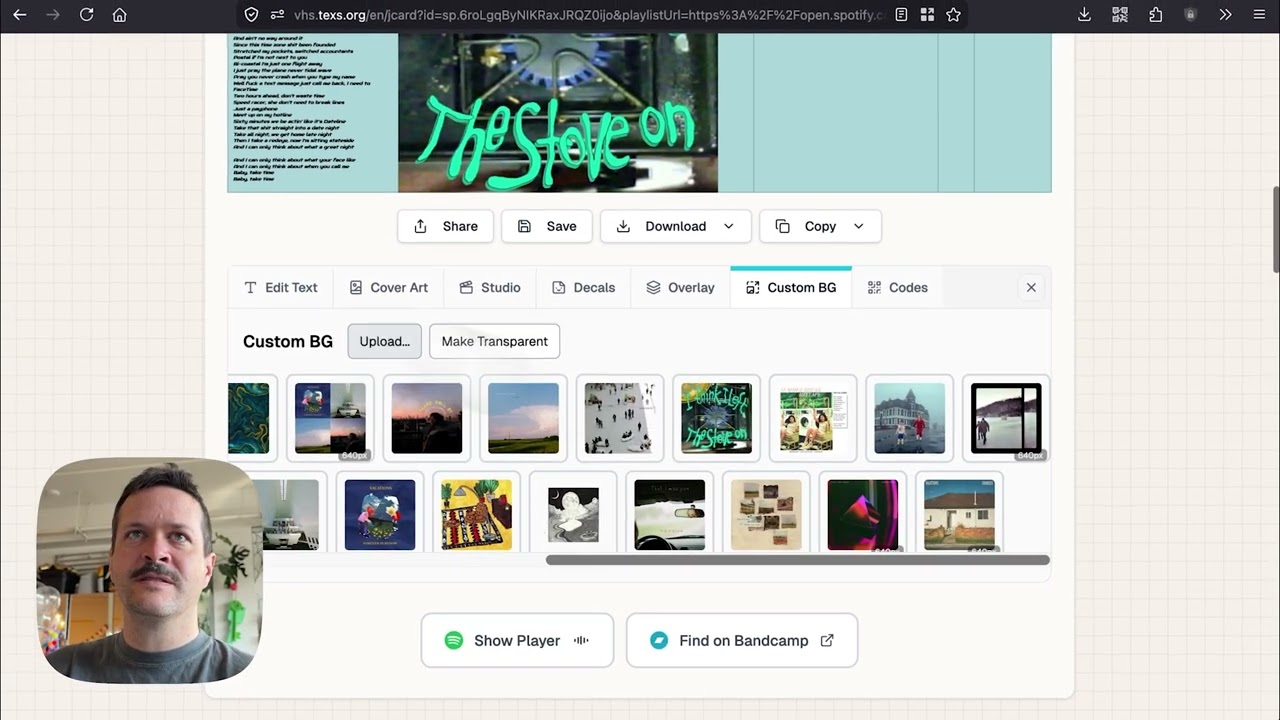
Adding Photos to J-Cards
Add photos to double-sided J-card designs for a custom cassette look.

Making Cassette Labels
Print and apply custom cassette labels for your mixtapes and music collections.
Quick Guides
Printer Settings
One of the most important things to do when printing is to choose your right paper size and set your scale to 100%. The gallery below shows a variety of example printer dialog boxes to show how to set your print at 100% scale.
Every browser has a different printer dialog, and we've attempted to guess your setup below:
Print Dialog Examples
Click any image to enlarge. Find the 100% scale setting in your browser or app.
Paper Size Guide
| Paper Size | Dimensions | Best For |
|---|---|---|
| US Letter | 8.5" × 11" (216 × 279 mm) | VHS labels, J-cards, CD inserts |
| US Legal | 8.5" × 14" (216 × 356 mm) | VHS sleeves, polycases |
| A4 | 8.27" × 11.69" (210 × 297 mm) | VHS labels, J-cards, CD inserts |
| A3 | 11.69" × 16.54" (297 × 420 mm) | All sleeves and large covers |
| Tabloid (11×17) | 11" × 17" (279 × 432 mm) | All sleeves and large covers |
Most VHS sleeves and covers require Legal, A3, or Tabloid paper. If your printer only supports Letter/A4, consider using a print shop for larger designs.
Cutting & Assembly
Tools You'll Need
- • Sharp scissors or craft knife (X-Acto)
- • Metal ruler for straight cuts
- • Cutting mat to protect your surface
- • Bone folder for crisp folds (or a credit card)
Cutting Tips
- • Let ink dry completely before cutting (5-10 minutes)
- • Cut slightly inside the design edge for cleaner results
- • Use multiple light passes with a craft knife vs. one heavy cut
- • Round corners slightly to prevent peeling (for labels)
Folding Tips
- • Score fold lines lightly with a bone folder first
- • Fold with the printed side facing out
- • For J-cards: fold the flaps inward, spine panel last
- • Use a ruler edge to get sharp, straight folds
Professional Print Services
Don't have a printer, or need a paper size yours can't handle? Any local print shop or copy shop can print these designs. Bring or email them the PDF and tell them what paper you want — cardstock for covers, sticker paper for labels. They can usually advise on weight and finish, and many will cut it to size for you.
Whichever shop you use, ask them to print at 100% scale ("actual size") — never "fit to page", which shrinks the design and throws off every measurement.
Some chain print shops turn away anything that looks like studio artwork, and it comes down to the person at the counter. If that happens, the Export menu on every mode has a Print shop letter: a short one-page note in your own words saying the copies are for your personal collection, with a declaration you sign in the store. Print it with your design. Smaller local shops and self-service kiosks are usually more relaxed than the big chains.
Troubleshooting
Print is too small
Colors look washed out or wrong
Ink is smearing
Design is cut off at edges
Labels are peeling off
Photopea Print Templates
Each template opens a blank canvas in Photopea (a free, no-install browser editor). After you tap Copy on a design, paste it in with Ctrl/Cmd + V and print at 100% (actual size).
General-Purpose Sheets
Blank sheets in every common size — best when a design's dimensions vary, like Obi strips. US sizes on the left, international on the right.
US / Imperial
Templates by Mode
Pre-sized templates for each label type. Most modes surface these automatically under the Paste & Print button once you copy a design.